
Twerk Widget
Thanks for downloading our widget!
Here you will find instructions on how to set everything up and an in-depth description of its possibilities.
⚠️ Take note: This widget is hosted on StreamElements and works only with StreamElements donations — make sure you have a StreamElements account before setting it up!
Widget Installation
- Log in to StreamElements with your Youtube or Twitch account
- Go to the “2. Widget” folder in the package you’ve downloaded
-
Pick the file that corresponds to your streaming platform (Twitch or YouTube) and double-click to install it.
Voila! Your widget is installed!
Widget Customization
-
Pick your widget in your StreamElements dashboard and click “Edit”

-
Click on “Layers” and go to your widget.

- Go to the “Settings” tab


- Woohoo, here you can customize everything to your taste :)
⚠️ IMPORTANT
For all of your customizations to take effect, you need to press "Save" in the top right corner of the editor and refresh the page before adding the widget to your streaming software!

Customization Fields
🧪 Testing
| Name | Description |
|---|---|
| Play Test Animation | Click to trigger a dummy event and preview the animation in the StreamElements editor. |
💬 General Settings
| Name | Description |
|---|---|
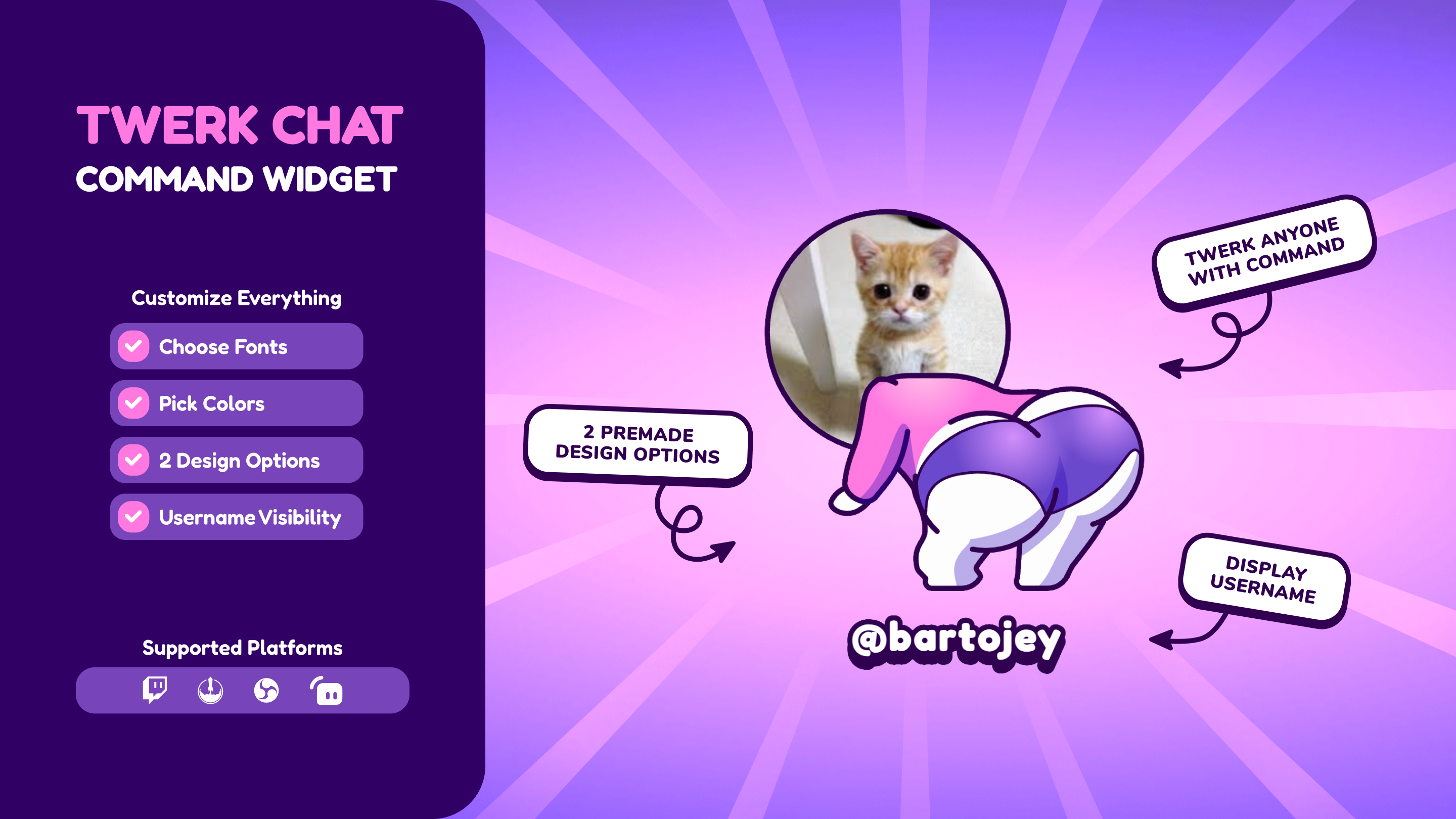
| Character Outfit Style | Dropdown to choose between "Panties" or "Clothes" style for the Lottie character. |
| Twerk Command | The chat command that triggers the widget (e.g., !twerk ). |
| Who Can Use Command | Sets the permission level required to trigger the command (e.g., Everyone, VIPs+, Moderators+, Broadcaster Only). |
| Global Cooldown (seconds) | Adjusts the global cooldown time in seconds before the command can be used again. |
| Flip Animation Horizontally | A checklist option that visually mirrors the entire Lottie animation and profile picture horizontally. |
| Display Duration (seconds) | Controls how many seconds the animation stays on screen before disappearing. |
🎨 Colors
| Name | Description |
|---|---|
| Body Color | Sets the main skin/body color of the character. |
| Clothes Color | Sets the primary color of the clothing (visible in the "Clothes" outfit style). |
| Clothes Light Color | Controls the bright white lighting gradients and highlights specifically on the clothes. |
| Pants Color | Colorizes the shorts/panties. |
| Shadow Color | Sets the color for ambient shadows and dark vector fills. |
| Booty Light Color | Controls the stylized purple gradients and highlight accents on the character. |
| Stroke Color | Sets the color for all vector outlines and structural line-art. |
📝 Typography & Display
| Name | Description |
|---|---|
| Show Username | Checkbox to toggle the display of the user who got "twerked” below the animation. |
| Font Family | Defines the typography using Google Fonts (e.g., 'Inter'). |
| Username Color | Sets the core fill color of the username text. |
| Text Stroke Color | Selects the color of the thick outer stroke surrounding the text. |
| Text Shadow Color | Determines the color used for the heavy solid drop-shadow behind the text. |
| Text Stroke Width | Adjusts the thickness of the text's outer stroke. |
| Text Shadow Depth | Controls the vertical distance and depth of the text shadow. |
| Font Size (px) | Scales the overall font size for the username tag. |
How to Add it to the Streaming Software?
OBS Studio
- Copy the URL of your Widget from the StreamElements dashboard
- Open OBS Studio
- Click “Add Source” (plus icon) in the Sources section.
- Add a “Browser” source, give it a name, and press “Ok”
- Paste the URL you’ve copied
- Set the width to 1920 and the height to 1080
- Press “Ok” and we’re done!
Streamlabs Desktop
- Copy the URL of your Widget from the StreamElements dashboard
- Open Streamlabs Desktop
- Click “Add a new Source” (plus icon) in the Sources section.
- Choose “Browser Source”, give it a name, and press “Add Source”.
- Paste the URL you’ve copied previously
- Set the width to 1920 and the height to 1080
- Now press “Close” and that’s it! Your widget is ready to use!