
Blind Box
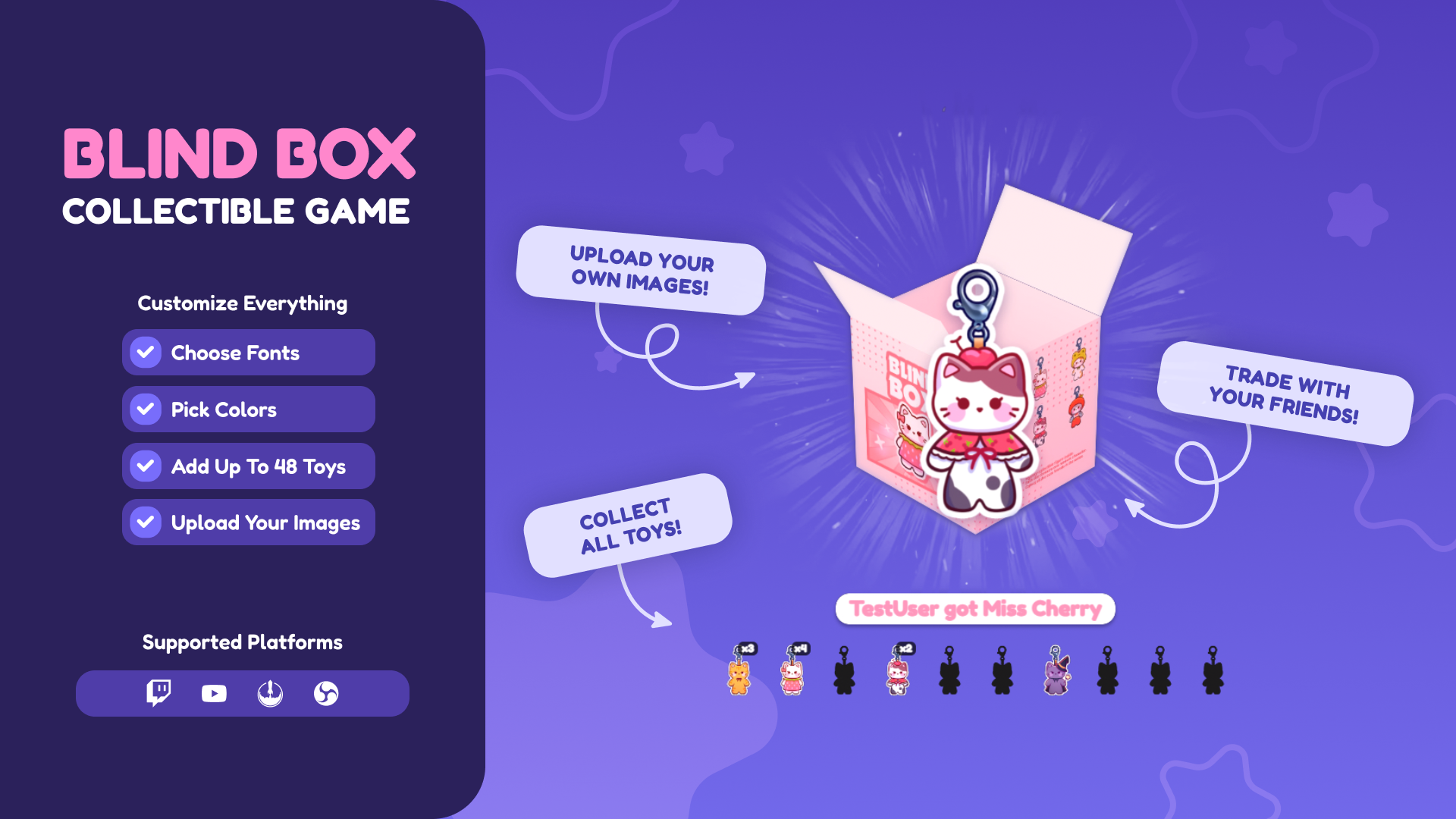
Thanks for downloading our widget!
Here you will find instructions on how to set everything up and an in-depth description of its possibilities.
⚠️ Take note: This widget is hosted on StreamElements and works only with StreamElements donations — make sure you have a StreamElements account before setting it up!
Widget Installation
- Log in to StreamElements with your Youtube or Twitch account
- Go to the “2. Widget” folder in the package you’ve downloaded
-
Pick the file that corresponds to your streaming platform (Twitch or YouTube) and double-click to install it.
Voila! Your widget is installed!
Widget Customization
-
Pick your widget in your StreamElements dashboard and click “Edit”

-
Click on “Layers” and go to your widget.

- Go to the “Settings” tab


- Woohoo, here you can customize everything to your taste :)
⚠️ IMPORTANT
For all of your customizations to take effect, you need to press "Save" in the top right corner of the editor and refresh the page before adding the widget to your streaming software!

Customization Fields
⚙️ Behavior Settings
| Name | Description |
|---|---|
| Toy Display Duration | How long the toy stays on screen after being revealed (Minimum 3 seconds). |
| Collection View Duration | How long the collection remains visible when triggered via command. |
| Time Between Toys | Cooldown period between multiple toy draws to prevent overlapping alerts. |
| Trade Proposal Timeout | Duration (in seconds) that a trade offer stays active before expiring. |
| Command Permissions | Choose who can use chat commands (Broadcaster, Moderators, VIPs, Subscribers, or Everyone). |
🎨 Design Settings
| Name | Description |
|---|---|
| Primary Theme Color | The main accent color used for labels, backgrounds, and highlighting. |
| Secondary Color | Color used for text and secondary accents. |
| Box Base Color | The base color of the 3D Blind Box. |
| Box Shading Color | Used for depth and shadows on the 3D box faces. |
| Primary Font | Select a Google Font for all widget text. |
| Font Size | Adjust the text size across the widget. |
| Box Front Texture | Upload an image to be applied to the front face of the 3D box. |
| Box Side Texture | Upload an image to be applied to the side faces of the 3D box. |
| Image for Unrevealed Toys | Placeholder image shown in the collection for toys not yet found. |
⚡ Stream Events
| Name | Description |
|---|---|
| Sub/Support Trigger | Enable toy draws for new and recurring subscriptions. |
| Follow Trigger | Enable toy draws when someone follows the channel. |
| Tip / Donation Trigger | Enable toy draws for tips, with a configurable minimum amount. |
| Cheer / Super Chat Trigger | Enable toy draws for bits or super chats, with a configurable minimum amount. |
| Channel Points | (Twitch Only) Trigger a toy draw using a specific Channel Point reward name. |
🤖 Chat Commands
| Name | Description |
|---|---|
| Draw Command | Default: !toy . Triggers a random toy draw. |
| Collection Command | Default: !collection . Shows the user's current toy progress. |
| Reset Command | Default: !reset [username] or !reset all . Clears collection data (Moderator only). |
🤝 Trade System
The widget features a real-time Trade Arena where users can swap duplicate toys to complete their sets.
- How to Initiate: Use
!trade [Offer_ID] [Request_ID].- Example:
!trade 5 12(You offer your toy #5 for any toy #12).
- Example:
- How to Accept: Anyone who has the requested toy can type
!acceptto complete the trade. - Visual Feedback: A dedicated "Trade Arena" UI appears, showing the offered toy and a "Searching" status for the request until someone accepts.
- Completion: Once accepted, the toys are automatically swapped between the two users' collections.
🖼 Toy Images Template Guide
For the best visual quality and performance, we recommend the following resolutions for your uploads:
- Resolution and Format – Create each image and save as a transparent PNG.
- Consistent Height – For a smooth experience, ensure every toy has the exact same height within the frame so they don't appear to change size when revealed.
- Unrevealed Toy – Your unrevealed placeholder can be any of your toys, provided it has the same height as the others.
- Alignment – Center your toys horizontally and vertically to ensure they sit perfectly inside the 3D box during the unboxing animation.
- Guide for Non-Photoshop Users – If you aren't using Photoshop, create one "master" silhouette image to use as a background guide. Place every new toy on top of this silhouette to keep their sizes and positions identical.
| Component | Recommended Resolution | Aspect Ratio |
|---|---|---|
| Toy Images | 360 x 540 px | 2:3 (Portrait) |
| Unrevealed Toy | 360 x 540 px | 2:3 (Portrait) |
| Keychain | 200 x 660 px | 10:33 (Vertical) |
| Box Front Texture | 400 x 400 px | 1:1 (Square) |
| Box Side Texture | 400 x 400 px | 1:1 (Square) |
⚠️ IMPORTANT
For all of your customizations to take effect, you need to press "Save" in the top right corner of the editor and refresh the page before adding the widget to your streaming software!
How to Add it to the Streaming Software?
OBS Studio
- Copy the URL of your Widget from the StreamElements dashboard
- Open OBS Studio
- Click “Add Source” (plus icon) in the Sources section.
- Add a “Browser” source, give it a name, and press “Ok”
- Paste the URL you’ve copied
- Set the width to 1920 and the height to 1080
- Press “Ok” and we’re done!
Streamlabs Desktop
- Copy the URL of your Widget from the StreamElements dashboard
- Open Streamlabs Desktop
- Click “Add a new Source” (plus icon) in the Sources section.
- Choose “Browser Source”, give it a name, and press “Add Source”.
- Paste the URL you’ve copied previously
- Set the width to 1920 and the height to 1080
- Now press “Close” and that’s it! Your widget is ready to use!