
Clicker Chat Game
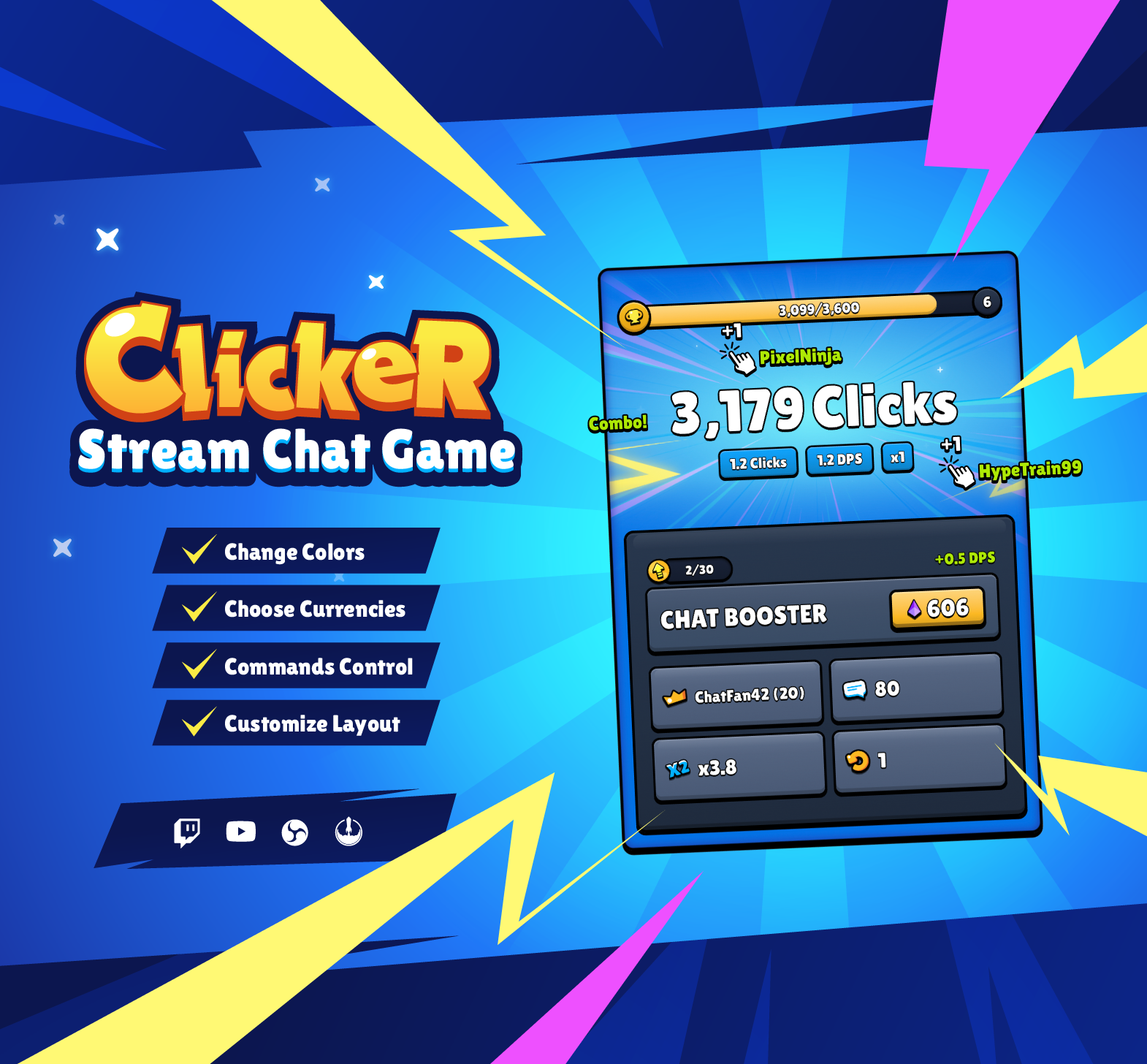
Thanks for downloading our widget!
Here you will find instructions on how to set everything up and an in-depth description of its possibilities.
⚠️ Take note: This widget is hosted on StreamElements and works only with StreamElements donations — make sure you have a StreamElements account before setting it up!
Widget Installation
- Log in to StreamElements with your Youtube or Twitch account
- Go to the “2. Widget” folder in the package you’ve downloaded
-
Pick the file that corresponds to your streaming platform (Twitch or YouTube) and double-click to install it.
Voila! Your widget is installed!
Widget Customization
-
Pick your widget in your StreamElements dashboard and click “Edit”

-
Click on “Layers” and go to your widget.

- Go to the “Settings” tab


- Woohoo, here you can customize everything to your taste :)
⚠️ IMPORTANT
For all of your customizations to take effect, you need to press "Save" in the top right corner of the editor and refresh the page before adding the widget to your streaming software!

Clicker Widget Guide
A community idle/clicker game that plays out live on stream. Chat works together to earn clicks, level up, buy upgrades, prestige, and ultimately win. Inspired by Cookie Clicker.
1. Quick Start
- Add the widget to your StreamElements overlay.
- Set the overlay size — the widget scales to fit any resolution.
- Chat sends messages to earn clicks for the shared pool.
- Viewers type
!buy [upgrade name]to spend clicks on upgrades. - Keep leveling, upgrading, and resetting until all 5 upgrades are maxed — that's a win!
The widget works out of the box with zero configuration. All defaults are tuned for a balanced ~2 hour game session.
2. How Clicks Are Earned
From Chat Messages
Every chat message earns clicks for the community pool. The amount per message is affected by three things:
- Base clicks per message — starts at 1, increases as you buy upgrades
- Combo multiplier — builds when chat is active (see Combo System)
- Prestige multiplier — a permanent bonus carried over from prestige resets
From Bits, Tips & Superchats
In free mode (currency = Clicks), monetary events add bonus clicks to the pool:
| Source | Bonus | Example |
|---|---|---|
| Bits | 1 click per bit (default) | 500 bits = 500 clicks |
| Tips | 100 clicks per $1 (default) | $5 = 500 clicks |
| Superchats | 100 clicks per $1 (default) | $5 = 500 clicks |
In paid modes (Bits/Tips/Superchats), monetary events buy upgrades directly instead — see Currency Modes.
3. Leveling System
The community has a shared level that grows as clicks are earned. Spending clicks on upgrades does NOT slow down leveling — the level tracks total clicks ever earned, not your current balance.
| Level | Total Clicks Needed | Clicks Since Last Level |
|---|---|---|
| 1 | 0 | — |
| 2 | 100 | 100 |
| 3 | 400 | 300 |
| 4 | 900 | 500 |
| 5 | 1,600 | 700 |
| 10 | 8,100 | 1,700 |
| 20 | 36,100 | 3,700 |
| 30 | 84,100 | 5,700 |
Early levels fly by quickly. Later levels require more sustained effort.
Levels also:
- Unlock upgrades (each upgrade has a minimum level requirement)
- Make the background visuals more intense
- Trigger a level-up banner animation
4. Combo System
When chat keeps sending messages, a combo multiplier builds up and makes every message worth more clicks.
- Every 3 messages within a 5-second window adds +0.2x to the multiplier
- The combo caps at x5.0
- If chat goes quiet, the combo resets back to x1.0
| Recent Messages (in 5s) | Combo |
|---|---|
| 0–2 | x1.0 |
| 3–5 | x1.2 |
| 6–8 | x1.4 |
| 9–11 | x1.6 |
| ... | ... |
| 60+ | x5.0 (max) |
Combo Tiers (Visual)
The on-screen animations change based on your current combo:
| Tier | Range | On-Screen Text |
|---|---|---|
| 1 | x1.0–x1.9 | COMBO!, NICE!, KEEP GOING!, CHAT! |
| 2 | x2.0–x3.4 | ON FIRE!, AMAZING!, LETS GO!, HYPE! |
| 3 | x3.5+ | UNSTOPPABLE!, GODLIKE!, LEGENDARY! |
Higher tiers have bigger animations and more screen shake.
5. Upgrades
There are 5 regular upgrades plus 1 prestige reset (upgrade 6). All purchases come from the shared community click pool.
Buying Upgrades
In free mode (Clicks): Type !buy [upgrade name] in chat.
- You can use the full name, a partial name, or just the number (1–6)
- Examples:
!buy mega clicker,!buy mega,!buy 1
In paid modes: Cheer bits / send a tip / superchat the upgrade's price. No chat command needed.
Upgrade Types
| Type | Effect |
|---|---|
| Clicks Per Message | Each chat message earns more clicks |
| Auto Clicks (DPS) | Clicks are generated automatically every second, even without messages |
Price Scaling
Each purchase makes the next one more expensive. With the default +10% growth:
| Purchase # | Price (base 100) |
|---|---|
| 1st | 100 |
| 2nd | 110 |
| 5th | 147 |
| 10th | 236 |
| 20th | 612 |
| 50th | 10,672 |
Default Upgrades
| # | Name | Type | Bonus | Base Price | Max Buys | Unlocks At |
|---|---|---|---|---|---|---|
| 1 | Mega Clicker | Clicks/Msg | +0.1 | 100 | 50 | Level 2 |
| 2 | Chat Booster | Auto Clicks | +0.5/sec | 500 | 30 | Level 5 |
| 3 | Super Bot | Auto Clicks | +2.0/sec | 2,000 | 20 | Level 9 |
| 4 | Giga Clicker | Auto Clicks | +5.0/sec | 5,000 | 10 | Level 14 |
| 5 | Quantum Clicker | Auto Clicks | +10.0/sec | 10,000 | 5 | Level 20 |
| 6 | Game Reset | Prestige | x1.2 permanent | 20,000 | Unlimited | Level 27 |
All names, values, prices, and unlock levels are fully configurable.
Who Can Buy
By default, everyone in chat can use !buy . You can restrict this in settings:
- Everyone (default)
- Subscribers
- VIPs
- Moderators
- Broadcaster Only
6. Prestige (Game Reset)
Buying upgrade 6 (Game Reset) wipes most progress but grants a permanent multiplier that carries into all future runs, making every subsequent run faster.
What resets: Clicks, level, all upgrade counts, auto clicks, combo.
What's kept: The permanent prestige multiplier, prestige count, total messages, top clicker, highest combo, and win state.
Prestige Multiplier
Each reset stacks a permanent bonus on top of the previous one, applying to all clicks (messages + auto clicks):
| Resets Done | Multiplier | Effect |
|---|---|---|
| 0 | x1.0 | Base game |
| 1 | x1.2 | 20% faster |
| 2 | x1.44 | 44% faster |
| 3 | x1.73 | 73% faster |
| 5 | x2.49 | ~2.5x faster |
| 10 | x6.19 | ~6x faster |
Prestige Cost
The reset doubles in price each time:
| Reset # | Price |
|---|---|
| 1st | 20,000 |
| 2nd | 40,000 |
| 3rd | 80,000 |
| 4th | 160,000 |
| 5th | 320,000 |
7. Win Condition
The game is won when all 5 regular upgrades are maxed out at the same time. A victory screen appears with a trophy and confetti, and the game stops — no more clicks are earned.
Win screen shows:
- Top Clicker — the chatter who sent the most messages
- Total Messages — lifetime messages across all resets
- Highest Combo — the peak combo multiplier reached
- Resets — total prestige count
The win screen persists between streams. To play again, use the Hard Reset.
8. Currency Modes
Free Mode: Chat Messages (Clicks)
- Viewers use
!buyto buy upgrades from the shared click pool - Bits/tips/superchats add bonus clicks to the pool
- Best for most streams — maximum chat engagement
Bits Mode
- Chat messages still earn clicks, combos, and levels
!buycommand is disabled- Cheering bits buys upgrades automatically — the widget picks the most expensive upgrade the viewer can afford, then repeats until nothing is left to buy
- Leftover bits convert to bonus clicks
- Best for monetized streams using bit incentives
Tips Mode
- Same as Bits mode but triggered by tip/donation amounts
- Best for streams using third-party tip services
Superchats Mode
- Same as Bits mode but triggered by YouTube Superchats
- Best for YouTube streams
9. Visual Effects
The background reacts to game activity across 5 stages — the higher your level, auto clicks, and combo, the more intense the visuals:
| Stage | Visuals |
|---|---|
| 1 | Blue speed lines (subtle) |
| 2 | + Cyan/teal lines |
| 3 | + Magenta lines, center glow |
| 4 | + Floating star icons |
| 5 | + Lightning zigzags (maximum intensity) |
Banners slide across the screen for key events:
| Banner | Color | Trigger |
|---|---|---|
| Level Up | Green | Reaching a new level |
| Purchase | Orange | An upgrade is bought (shows buyer name + upgrade) |
| Reset | Red | A prestige reset happens |
Floating text appears on each message showing the clicks earned and the chatter's username.
A hint bar periodically reminds viewers how to buy upgrades. It shows up every 60 seconds by default and can be turned off.
10. Settings Reference
How Clicks Are Earned
| Field | Default | Description |
|---|---|---|
| Currency Type | Clicks | How upgrades are purchased (Clicks / Bits / Tips / Superchats) |
| Bits — Clicks Per Bit | 1 | Bonus clicks per bit in free mode |
| Tips — Clicks Per $1 | 100 | Bonus clicks per dollar tipped in free mode |
| Superchats — Clicks Per $1 | 100 | Bonus clicks per dollar superchatted in free mode |
Leveling & Progression
| Field | Default | Description |
|---|---|---|
| Clicks Needed to Level Up | 100 | Base clicks required — each level costs more than the last |
| Combo Resets After (seconds) | 5 | How long a message counts toward the combo window |
| Messages to Advance Combo | 3 | Messages needed to reach the next combo tier |
| Combo Multiplier Growth | +0.2x | How much the multiplier increases per tier |
| Max Combo Multiplier | 5 | Hard cap on the combo |
Commands & Permissions
| Field | Default | Description |
|---|---|---|
| Buy Command | !buy | Chat command to purchase upgrades |
| Who Can Buy Upgrades | Everyone | Minimum permission level for !buy |
Hint Bar
| Field | Default | Description |
|---|---|---|
| Show Hint Bar | On | Toggle the periodic hint bar on/off |
| Show Every (seconds) | 60 | How often the hint bar appears |
| Stays Visible (seconds) | 10 | How long the hint bar stays on screen |
Upgrades 1–5
Each upgrade has these configurable fields:
| Field | Description |
|---|---|
| Name | Display name (also used for !buy matching) |
| What This Upgrade Boosts | Clicks Per Message or Auto Clicks (DPS) |
| Bonus Amount Per Purchase | Stat increase per buy |
| Starting Price | Base cost before scaling |
| Price Increases After Each Purchase | Enable/disable price scaling |
| Price Growth Rate | How fast prices grow (e.g. 1.1 = +10% per purchase) |
| Maximum Times Purchasable | Max buy count — all 5 must be maxed to win |
| Unlocks at Level | Minimum level required to buy this upgrade |
Prestige Reset (Upgrade 6)
| Field | Default | Description |
|---|---|---|
| Name | Game Reset | Display name |
| Starting Price | 20,000 | Base cost (doubles with each reset) |
| Price Increases After Each Purchase | On | Enable/disable price scaling |
| Price Growth Rate | 1.1 | How fast the price grows between purchases |
| Permanent Bonus After Each Reset | 1.2 | Multiplier per prestige — stacks with every reset |
| Unlocks at Level | 27 | Minimum level required to prestige |
Appearance
| Field | Default | Description |
|---|---|---|
| Background Color | #0273e7 | Main widget background color |
| Progress Bar Color | #f5a623 | Level bar fill color |
| Buy Button Color | #f5a623 | Upgrade price button color |
| Status Pill Color | #0273e7 | Stat pills background color |
11. Hard Reset
To completely wipe all game data and start fresh (useful after a win or to restart mid-stream):
- Check "Arm the reset" in settings
- Check "CONFIRM RESET"
- Save the widget settings
Both checkboxes must be checked when you save — this prevents accidental resets.
After the reset fires, uncheck both boxes and save again so it doesn't trigger on every future save.
A hard reset wipes everything: clicks, levels, upgrades, prestige count, prestige multiplier, and win state. Message stats (total messages, top clicker) are preserved.
12. Tips for Streamers
Game Length
Default settings create roughly a 2-hour game with moderate chat activity (~1 message/second). To adjust:
- Shorter game: Lower the base clicks per level, reduce upgrade max counts, lower prices
- Longer game: Raise base prices, increase max counts, raise unlock levels
Engagement
- Call out combo milestones — the combo system rewards chat bursts
- Prestige creates natural "seasons" within a single stream
- The win condition gives chat a shared goal to work toward
- Use the hint bar to remind viewers of the buy command
Monetization
- Bits mode turns the widget into a bits incentive — viewers cheer to make progress
- Free mode lets donors add bonus clicks without locking out the rest of chat
- Mix it up: start in free mode, switch to bits mode during hype moments
Customization Ideas
- Rename upgrades to match your brand or community memes
- Set upgrade 1 to Clicks Per Message and the rest to Auto Clicks for a balanced mix
- Lower combo cooldown (2–3s) for fast-paced streams
- Raise combo cooldown (10–15s) for slower, chill streams
- Set prestige unlock very high (level 40+) to make it a rare, exciting event
State Persistence
Game progress saves automatically every 30 seconds. Your community can pick up right where they left off next stream — only a hard reset or prestige clears progress.
⚠️ IMPORTANT
For all of your customizations to take effect, you need to press "Save" in the top right corner of the editor and refresh the page before adding the widget to your streaming software!
How to Add it to the Streaming Software?
OBS Studio
- Copy the URL of your Widget from the StreamElements dashboard
- Open OBS Studio
- Click “Add Source” (plus icon) in the Sources section.
- Add a “Browser” source, give it a name, and press “Ok”
- Paste the URL you’ve copied
- Set the width to 1920 and the height to 1080
- Press “Ok” and we’re done!
Streamlabs Desktop
- Copy the URL of your Widget from the StreamElements dashboard
- Open Streamlabs Desktop
- Click “Add a new Source” (plus icon) in the Sources section.
- Choose “Browser Source”, give it a name, and press “Add Source”.
- Paste the URL you’ve copied previously
- Set the width to 1920 and the height to 1080
- Now press “Close” and that’s it! Your widget is ready to use!