
Fortune Cookie Widget
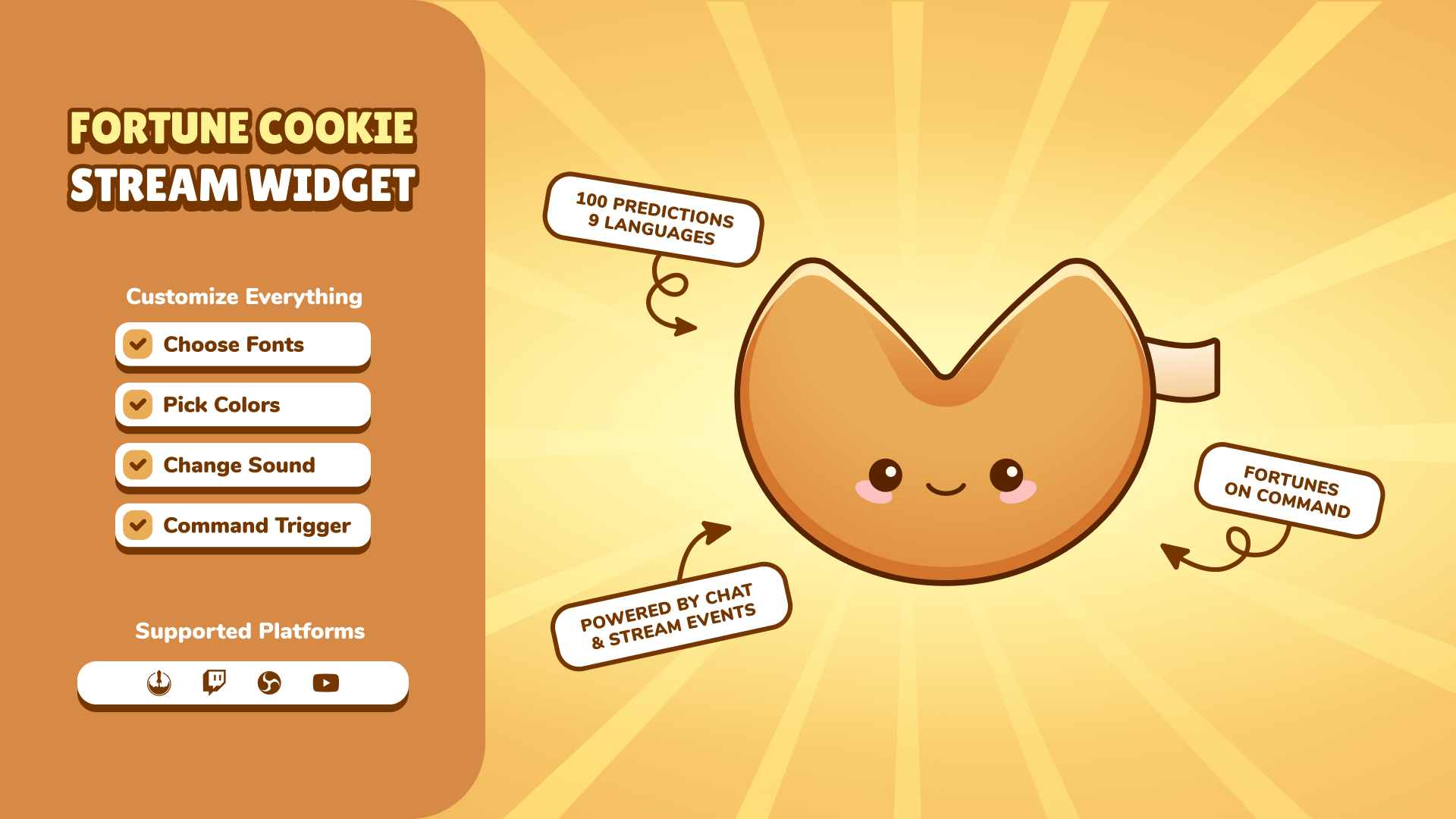
Thanks for downloading our widget!
Here you will find instructions on how to set everything up and an in-depth description of its possibilities.
⚠️ Take note: This widget is hosted on StreamElements and works only with StreamElements donations — make sure you have a StreamElements account before setting it up!
Widget Installation
- Log in to StreamElements with your Youtube or Twitch account
- Go to the “2. Widget” folder in the package you’ve downloaded
-
Pick the file that corresponds to your streaming platform (Twitch or YouTube) and double-click to install it.
Voila! Your widget is installed!
Widget Customization
-
Pick your widget in your StreamElements dashboard and click “Edit”

-
Click on “Layers” and go to your widget.

- Go to the “Settings” tab


- Woohoo, here you can customize everything to your taste :)
⚠️ IMPORTANT
For all of your customizations to take effect, you need to press "Save" in the top right corner of the editor and refresh the page before adding the widget to your streaming software!

Customization Fields
⏱️ Timing
| Name | Description |
|---|---|
| Display Duration (seconds) | Set how long each fortune remains visible after the cookie cracks. |
| Cooldown Between Cookies (seconds) | Define the minimum wait time before the next cookie can be triggered. |
📋 Queue
| Name | Description |
|---|---|
| Prioritize Paid Triggers | When enabled, paid events (like tips or subs) will jump ahead of free events in the queue. |
| Prevent Duplicate Users in Queue | Ensure a user can only be in the queue once at a time, preventing spam. |
| Max Queue Length | Set a limit on how many cookie requests can be waiting. Use 0 for no limit. |
🎨 Style
| Name | Description |
|---|---|
| Font Family | Select a custom Google Font for the fortune text. |
| Fortune Font Size (px) | Adjust the text size for the fortune message. |
| Paper Width (px) | Control the width of the paper slip that displays the fortune. |
| Prediction Padding (px) | Set the amount of space between the text and the edge of the paper. |
| Paper Corner Roundness (px) | Adjust how rounded the corners of the paper slip are. |
| Paper Stroke Width (px) | Set the thickness of the border around the paper. |
| Paper Background | Choose the background color of the paper slip. |
| Paper Stroke Color | Set the color of the paper's border. |
| Paper Shadow Color | Choose the color for the drop shadow behind the paper. |
| Paper Shadow Blur (px) | Adjust the blurriness and size of the paper's drop shadow. |
| Sparkle Color | Set the color of the main sparkle particles. |
| Sparkle Glow Color | Choose the color for the glow effect around the sparkles. |
| Fortune Text Color | Set the color of the fortune message text. |
| Username Text Color | Set the color for the user's name displayed on the fortune. |
🌐 Translation
| Name | Description |
|---|---|
| Fortune Language | Select the language for the fortune predictions. Available languages include English, German, French, Spanish, Italian, Portuguese, Dutch, Ukrainian, and Polish. |
🔉 Audio
| Name | Description |
|---|---|
| Enable Sound Effect | Turn the cookie cracking sound effect on or off. |
| Sound Effect | Upload a custom sound to play when the cookie cracks. |
| Sound Volume | Adjust the volume of the sound effect. |
🧪 Testing
| Name | Description |
|---|---|
| Testing Mode | Enable a continuous loop of fortune cookies for easy style setup and testing. |
| Delay Between Cycles (s) | Set the wait time between each cookie reveal in testing mode. |
Twitch-Specific Settings
✨ Triggers (Twitch)
| Name | Description |
|---|---|
| Enable Bits Trigger | Allow viewers to get a fortune by cheering with Bits. |
| Minimum Bits | Set the minimum number of Bits required to trigger a cookie. |
| Enable Tips/Donations Trigger | Allow viewers to get a fortune with a tip or donation. |
| Minimum Tip Amount | Set the minimum tip amount required to trigger a cookie. |
| Enable Follow Trigger | Give a fortune to every new follower. |
| Enable Sub/Resub Trigger | Give a fortune to new subscribers and resubscribers. |
| Enable Gift Sub Trigger | Give a fortune when a viewer gifts a subscription. |
| Enable Channel Points Trigger | Allow viewers to redeem a custom Channel Points reward for a fortune. |
| Channel Points Reward Name | Enter the exact, case-sensitive name of the Channel Points reward. |
💬 Manual Command (Twitch)
| Name | Description |
|---|---|
| Manual Command | Set a chat command (e.g., !cookie ) to manually trigger a fortune. |
| Manual Command Permissions | Restrict who can use the manual command (e.g., Mods, VIPs, Subs, Everyone). |
YouTube-Specific Settings
✨ Triggers (YouTube)
| Name | Description |
|---|---|
| Show on Channel Subscription | Give a fortune to new (free) channel subscribers. |
| Show on Member (Paid) | Give a fortune to new paid channel members. |
| Show on Gifted Membership | Give a fortune when a viewer gifts a membership. |
| Show on Super Chat/Sticker | Allow viewers to get a fortune with a Super Chat or Super Sticker. |
| Minimum Super Chat Amount | Set the minimum Super Chat value required to trigger a cookie. |
| Enable Tips/Donations Trigger | Allow viewers to get a fortune with a tip or donation. |
| Minimum Tip Amount | Set the minimum tip amount required to trigger a cookie. |
💬 Manual Command (YouTube)
| Name | Description |
|---|---|
| Manual Command | Set a chat command (e.g., !cookie ) to manually trigger a fortune. |
| Manual Command Permissions | Restrict who can use the manual command (e.g., Mods, Members, Everyone). |
⚠️ IMPORTANT
For all of your customizations to take effect, you need to press "Save" in the top right corner of the editor and refresh the page before adding the widget to your streaming software!
How to Add it to the Streaming Software?
OBS Studio
- Copy the URL of your Widget from the StreamElements dashboard
- Open OBS Studio
- Click “Add Source” (plus icon) in the Sources section.
- Add a “Browser” source, give it a name, and press “Ok”
- Paste the URL you’ve copied
- Set the width to 1920 and the height to 1080
- Press “Ok” and we’re done!
Streamlabs Desktop
- Copy the URL of your Widget from the StreamElements dashboard
- Open Streamlabs Desktop
- Click “Add a new Source” (plus icon) in the Sources section.
- Choose “Browser Source”, give it a name, and press “Add Source”.
- Paste the URL you’ve copied previously
- Set the width to 1920 and the height to 1080
- Now press “Close” and that’s it! Your widget is ready to use!