
Q&A Widget
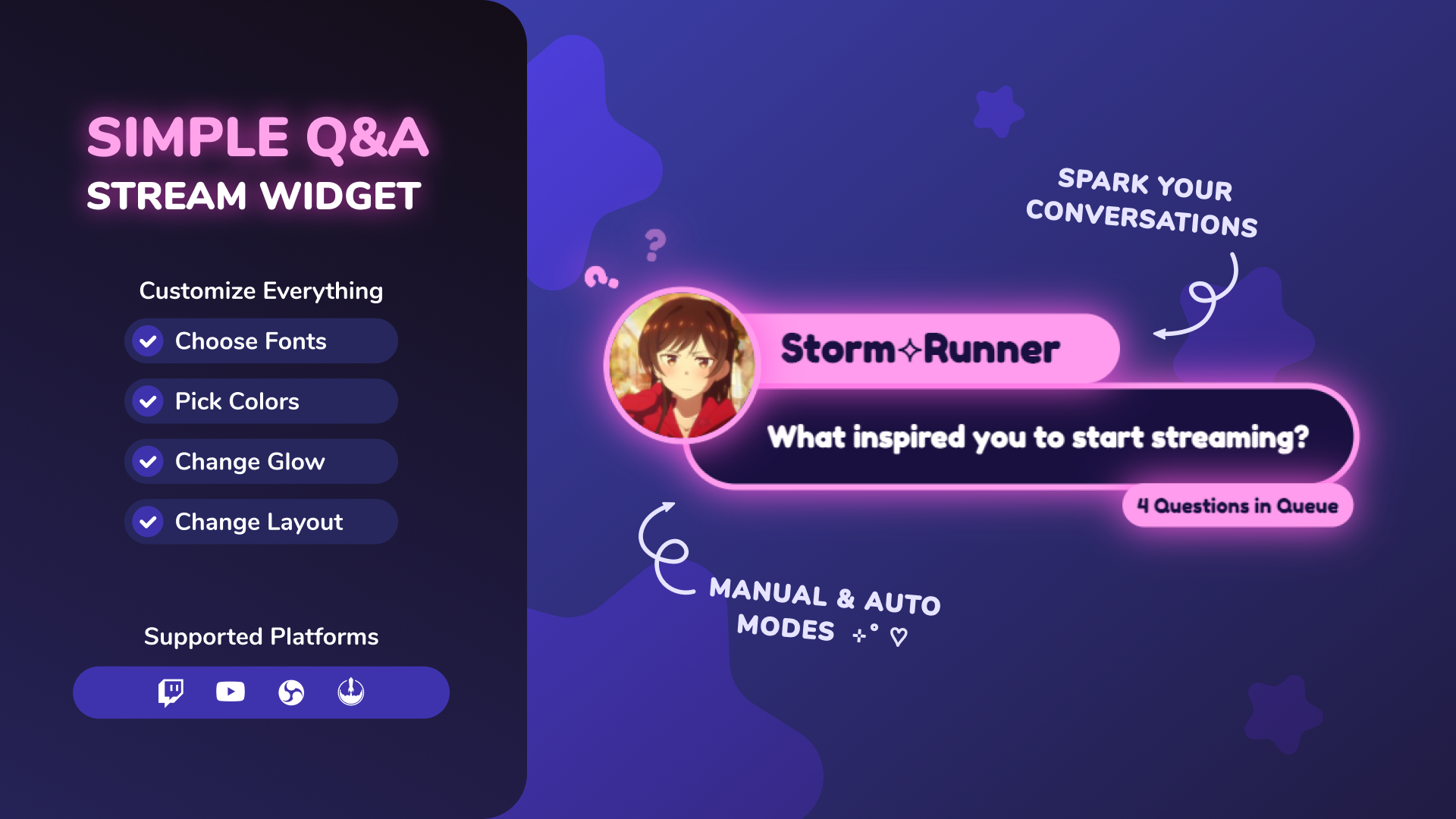
Thanks for downloading our widget!
Here you will find instructions on how to set everything up and an in-depth description of its possibilities.
⚠️ Take note: This widget is hosted on StreamElements and works only with StreamElements donations — make sure you have a StreamElements account before setting it up!
Widget Installation
- Log in to StreamElements with your Youtube or Twitch account
- Go to the “2. Widget” folder in the package you’ve downloaded
-
Pick the file that corresponds to your streaming platform (Twitch or YouTube) and double-click to install it.
Voila! Your widget is installed!
Widget Customization
-
Pick your widget in your StreamElements dashboard and click “Edit”

-
Click on “Layers” and go to your widget.

- Go to the “Settings” tab


- Woohoo, here you can customize everything to your taste :)
⚠️ IMPORTANT
For all of your customizations to take effect, you need to press "Save" in the top right corner of the editor and refresh the page before adding the widget to your streaming software!

Customization Fields
Commands & Permissions
Commands
| Command | What it does |
|---|---|
!ask <question> |
Submits a question into the queue. |
!qa start |
Shows the intro screen (starts Q&A). |
!qa next |
Shows the next queued question. |
!qa skip |
Skips to the last queued question (drops any questions in-between). |
!qa clear |
Clears the entire question queue. |
!qa end / !qa stop |
Shows outro, then hides widget using an animated outro exit. |
Command permissions (Trigger command)
This controls who can use !qa ... trigger commands.
- Twitch (
commandPermission) options:broadcaster,moderator,vip,subscriber,everyone
- YouTube (
commandPermission) options (Megathon-style):broadcaster,moderator,sponsor,everyone- Implementation mapping:
broadcaster= channel ownermoderator= chat moderatorsponsor= member
💬 Chat Commands
| Name | Description |
|---|---|
| Trigger Command | Base command for Q&A controls (defaults to !qa ). |
| Ask Command | Command viewers use to submit questions (defaults to !ask ). |
| 🔐 Who Can Use Commands? | Who can use triggerCommand controls (start/stop/end/next/skip/clear ). Platform-specific role list (see above). |
🎯 Content
| Name | Description |
|---|---|
| Intro Title | Title text shown during intro. |
| Intro Message Line 1 | First line of the intro message pill. Supports {accent text} highlighting. |
| Intro Message Line 2 (Example) | Second line of the intro message pill. Supports {accent text} highlighting. |
| Outro Title | Title shown during outro. |
| Outro Message | Outro message shown in the message pill. Supports {accent text} highlighting. |
| Queue Badge Text (singular) | Text used when exactly 1 question is remaining in queue (after current). |
| Queue Badge Text (plural) | Text used when 2+ questions are remaining in queue (after current). |
🤖 Auto Mode
| Name | Description |
|---|---|
| Auto Mode (auto-advance screens) | When enabled, automatically progresses Intro → Question → Outro with timers. |
| Intro Duration (s) | Seconds to show intro before first question (when Auto Mode is on). |
| Time Per Question (s) | Seconds per question (Auto Mode). |
| Outro Duration (s) | Seconds to show outro before hiding (Auto Mode). |
🧪 Testing
| Name | Description |
|---|---|
| Testing Mode | Enables simulated questions so you can preview animations/layout. |
| Show Only Intro (static preview) | Testing-only: shows only the Intro screen (no cycling/rotation). |
| Show Only Questions (static preview) | Testing-only: shows a single question screen (no cycling/rotation). |
| Show Only Outro (static preview) | Testing-only: shows only the Outro screen (no cycling/rotation). |
| Question Spawn Interval (s) | Testing-only: how often new test questions are spawned. |
⚙️ Animation
| Name | Description |
|---|---|
| Animation Speed | Global speed multiplier for screen and element animations. |
🅰️ Typography & Sizing
| Name | Description |
|---|---|
| Font Family | Google font used throughout the widget. |
| Font Weight | Font weight used throughout the widget (400–900). |
| Title Size (px) | Size of the intro/outro title pill text. |
| Intro Message 1 Size (px) | Font size of intro line 1. |
| Intro Message 2 Size (px) | Font size of intro line 2. |
| Outro Message Size (px) | Font size of outro message. |
| Username Size (px) | Font size of the username pill. |
| Question Text Size (px) | Font size of the question text. |
| Queue Badge Size (px) | Font size of the queue badge. |
✨ Colors & Styling
| Name | Description |
|---|---|
| Corner Radius (px) | Rounds corners for pills/containers. |
| Border Size (px) | Border width used for avatar/question container borders. |
| Border Color | Shared border color used in multiple elements. |
| Glow Color | Base glow color used by glow-enabled elements. |
| Glow: Title | Toggles title pill glow. |
| Glow: Question Marks | Toggles question mark glow. |
| Glow: Accent Text | Toggles glow for {accent text} spans. |
| Glow: User Picture | Toggles avatar glow. |
| Glow: Username Pill | Toggles username pill glow. |
| Glow: Question Container | Toggles question container glow. |
| Glow: Queue Badge | Toggles queue badge glow. |
| Intro & Outro Title | Text color for intro/outro title pill. |
| Intro & Outro Title Pill | Background color for intro/outro title pill. |
| Intro & Outro Message Text | Text color for intro/outro message lines. |
| Intro & Outro Message Pill | Background color for intro/outro message pill. |
| Question Marks Color | Color for the decorative question marks. |
| Username Pill Text | Username text color. |
| Username Pill Background | Username pill background color. |
| Question Background | Background color for the question container. |
| Question Text | Text color for question text. |
| Queue Badge Text | Text color for queue badge. |
| Queue Badge Background | Background color for queue badge. |
📐 Layout
| Name | Description |
|---|---|
| Question Mark Size (%) | Scales question mark sizes up/down. |
| Question Marks Left (px) | X position of question marks group. |
| Question Marks Top (px) | Y position of question marks group. |
| Avatar Size (px) | Avatar diameter. |
| Avatar Top (px) | Avatar Y offset. |
| Avatar Left (px) | Avatar X offset. |
| Username Pill Top (px) | Username pill Y offset. |
| Username Pill Left (px) | Username pill X offset. |
| Question Container Top (px) | Question container Y offset. |
| Question Container Left (px) | Question container X offset. |
| Queue Badge Bottom Offset (px) | Moves queue badge up/down relative to the question container. |
⚠️ IMPORTANT
For all of your customizations to take effect, you need to press "Save" in the top right corner of the editor and refresh the page before adding the widget to your streaming software!
How to Add it to the Streaming Software?
OBS Studio
- Copy the URL of your Widget from the StreamElements dashboard
- Open OBS Studio
- Click “Add Source” (plus icon) in the Sources section.
- Add a “Browser” source, give it a name, and press “Ok”
- Paste the URL you’ve copied
- Set the width to 1920 and the height to 1080
- Press “Ok” and we’re done!
Streamlabs Desktop
- Copy the URL of your Widget from the StreamElements dashboard
- Open Streamlabs Desktop
- Click “Add a new Source” (plus icon) in the Sources section.
- Choose “Browser Source”, give it a name, and press “Add Source”.
- Paste the URL you’ve copied previously
- Set the width to 1920 and the height to 1080
- Now press “Close” and that’s it! Your widget is ready to use!