
Dual Counter Widget
Thanks for downloading our widget!
Here you will find instructions on how to set everything up and an in-depth description of its possibilities.
⚠️ Take note: This widget is hosted on StreamElements and works only with StreamElements donations — make sure you have a StreamElements account before setting it up!
Widget Installation
- Log in to StreamElements with your Youtube or Twitch account
- Go to the “2. Widget” folder in the package you’ve downloaded
-
Pick the file that corresponds to your streaming platform (Twitch or YouTube) and double-click to install it.
Voila! Your widget is installed!
Widget Customization
-
Pick your widget in your StreamElements dashboard and click “Edit”

-
Click on “Layers” and go to your widget.

- Go to the “Settings” tab


- Woohoo, here you can customize everything to your taste :)
⚠️ IMPORTANT
For all of your customizations to take effect, you need to press "Save" in the top right corner of the editor and refresh the page before adding the widget to your streaming software!

Customization Fields
Overview
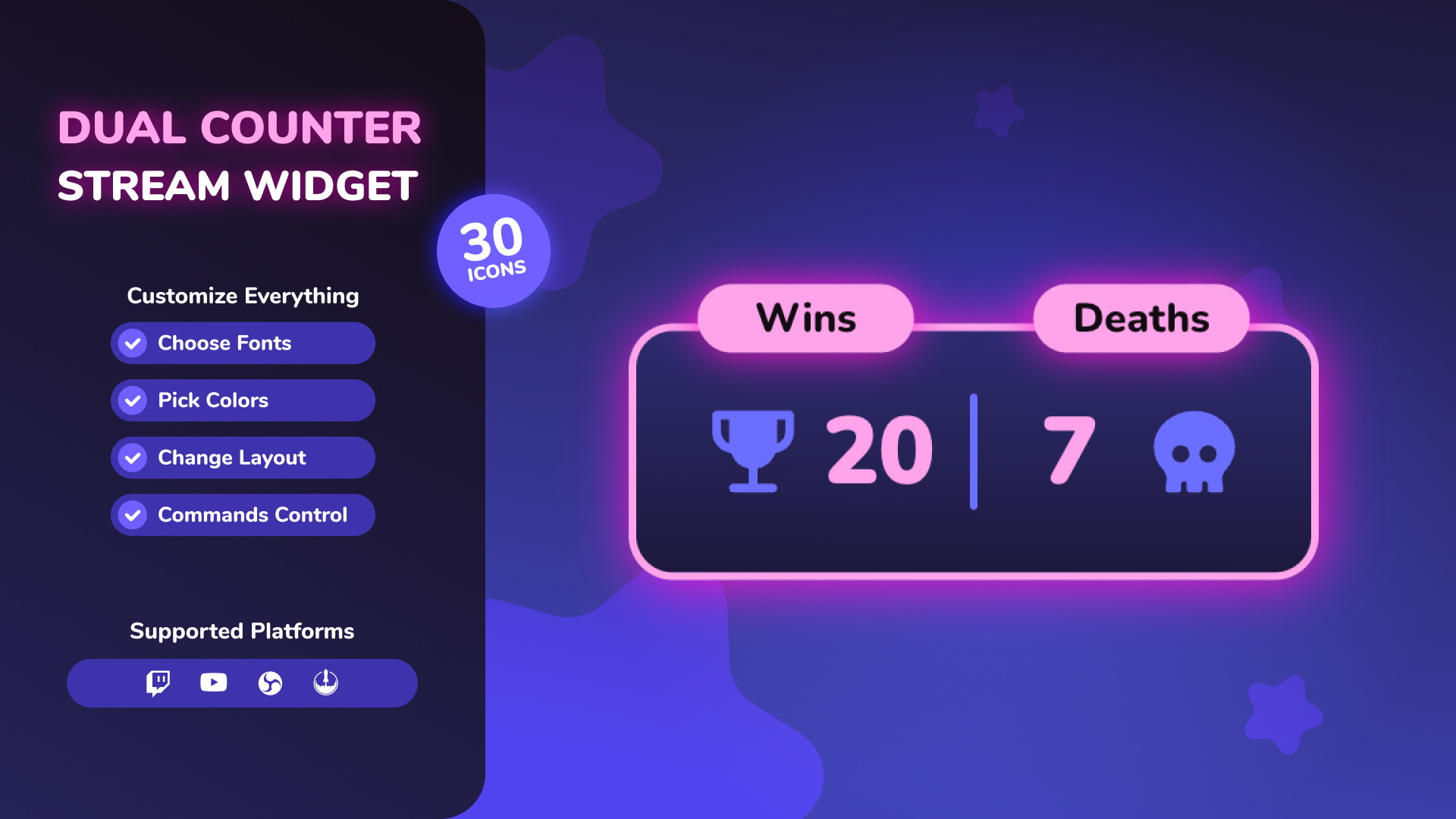
This widget is a double-sided counter: it displays two independent counters (Left/Right), each with its own label and icon. The main bar auto-expands when numbers get larger, while keeping both sides visually balanced.
📐 Layout
| Field | Description |
|---|---|
| Bar Height | Controls the height of the main bar. |
| Divider Color | Color of the center divider line. |
| Divider Thickness | Thickness of the center divider line. |
| Divider Height | Height (length) of the center divider line. |
🏷️ Label
| Field | Description |
|---|---|
| Left Label | Text inside the left label pill. |
| Right Label | Text inside the right label pill. |
| Label Font | Google Font used for both label pills. |
| Label Size | Scales both label pills up/down together. |
| Label Y Position | Moves the label row up/down. |
| Label Gap | Controls how far the left/right label pills spread apart. Positive values push them outward; negative values pull them inward and can overlap. |
| Font Weight | Label font weight. |
| Text Color | Label text color. |
| Shadow Color | Label glow/shadow color. |
| Background - Color 1 | Label gradient color 1. |
| Background - Color 2 | Label gradient color 2. |
| Border Color | Label border color. |
| Border Width | Label border width (0 = no border). |
| Corner Roundness | Label corner roundness. |
Label pills automatically size to the label text length (they are not forced to be equal width).
🔢 Counter
| Field | Description |
|---|---|
| Counter Font | Google Font used for both counter numbers. |
| Font Size | Counter number size (no digit-based resizing; the bar expands instead). |
| Font Weight | Counter number font weight. |
| Text Color | Counter number color. |
📦 Main Container
| Field | Description |
|---|---|
| Main Background - Color 1 | Main bar gradient color 1. |
| Main Background - Color 2 | Main bar gradient color 2. |
| Border Color | Main bar border color. |
| Border Width | Main bar border width (0 = no border). |
| Corner Roundness | Main bar corner roundness. |
| Shadow Color | Main bar glow/shadow color. |
🎨 Icon
| Field | Description |
|---|---|
| Icon Size | Size of both side icons. |
| Left Icon Type | Icon used on the left side (supports Custom Upload). |
| Left Custom Icon | Custom image for left side (shown only if Left Icon Type = Custom Upload). |
| Right Icon Type | Icon used on the right side (supports Custom Upload). |
| Right Custom Icon | Custom image for right side (shown only if Right Icon Type = Custom Upload). |
| Icon Color | Color applied to SVG icons (custom uploaded images keep their original colors). |
⌨️ Commands
Configurable command names
| Field | Description |
|---|---|
| Toggle Visibility Command | Shows/hides the widget (default: !counter ). |
| Add Command | Adds to counter(s) (default: !add ). |
| Subtract Command | Subtracts from counter(s) (default: !subtract ). |
| Set Command | Sets counter(s) to a value (default: !set ). |
| Reset Command | Resets counter(s) (default: !reset ). |
| Command Permissions | Who can use the commands. (Twitch build: Everyone / Subscribers / VIPs / Moderators / Broadcaster. YouTube build: Everyone / Members / Moderators / Channel Owner.) |
Supported command syntax
All commands are case-insensitive.
| Action | Examples |
|---|---|
| Add | !add left 5 / !add right 3 / !add 2 (adds to both) |
| Subtract | !subtract left 2 / !sub right 1 / !subtract 1 (subtracts from both) |
| Set | !set left 10 / !set right 0 / !set 7 (sets both) |
| Reset | !reset left / !reset right / !reset all (resets both) |
Per-side alias commands
These do not require a side argument:
| Side | Add | Subtract | Set | Reset |
|---|---|---|---|---|
| Left | !addl |
!subl |
!setl |
!resetl |
| Right | !addr |
!subr |
!setr |
!resetr |
How to Add it to the Streaming Software?
OBS Studio
- Copy the URL of your Widget from the StreamElements dashboard
- Open OBS Studio
- Click “Add Source” (plus icon) in the Sources section.
- Add a “Browser” source, give it a name, and press “Ok”
- Paste the URL you’ve copied
- Set the width to 1920 and the height to 1080
- Press “Ok” and we’re done!
Streamlabs Desktop
- Copy the URL of your Widget from the StreamElements dashboard
- Open Streamlabs Desktop
- Click “Add a new Source” (plus icon) in the Sources section.
- Choose “Browser Source”, give it a name, and press “Add Source”.
- Paste the URL you’ve copied previously
- Set the width to 1920 and the height to 1080
- Now press “Close” and that’s it! Your widget is ready to use!