
Top Chatters Leaderboard
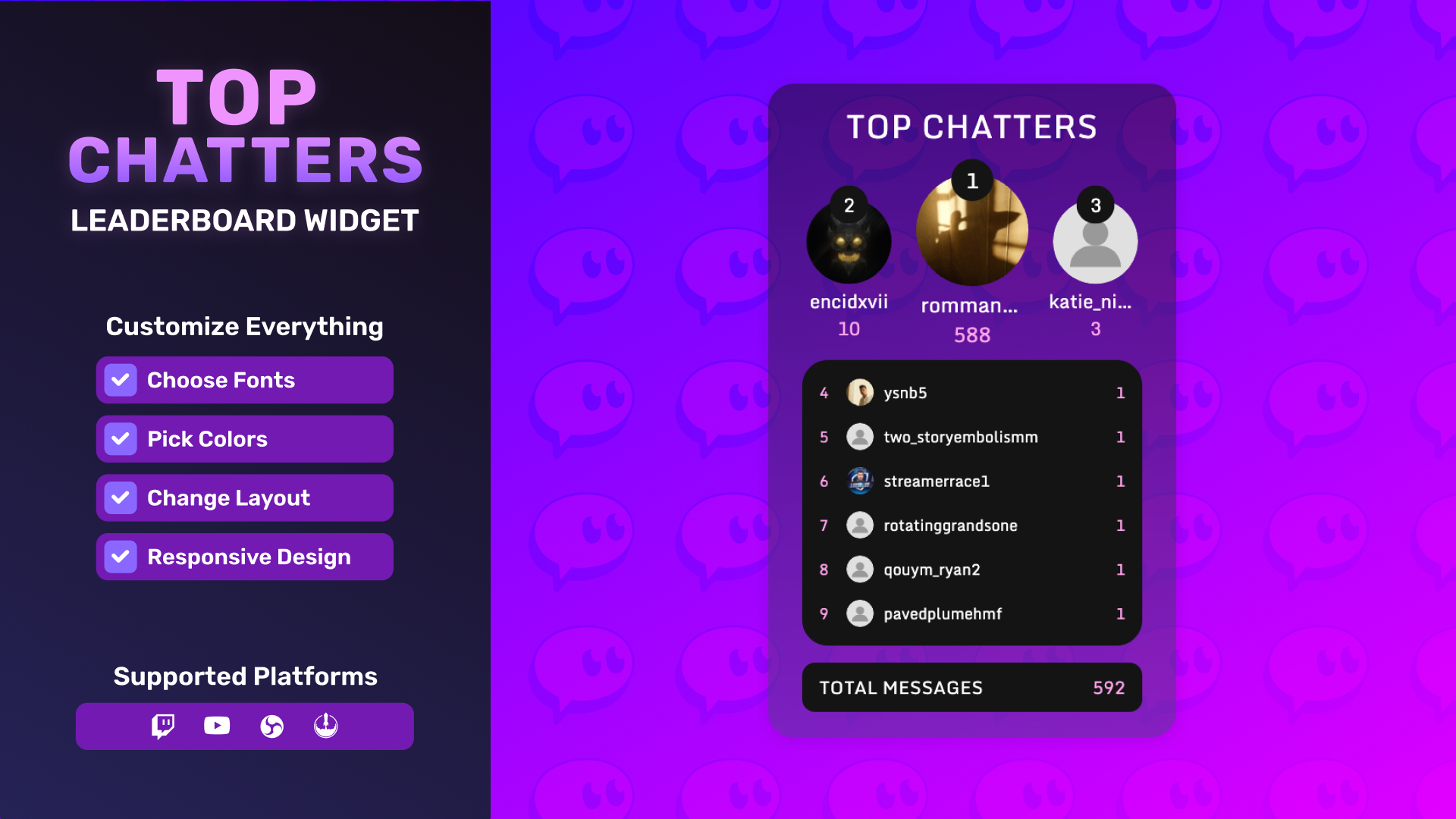
Thanks for downloading our widget!
Here you will find instructions on how to set everything up and an in-depth description of its possibilities.
⚠️ Take note: This widget is hosted on StreamElements and works only with StreamElements donations — make sure you have a StreamElements account before setting it up!
Widget Installation
- Log in to StreamElements with your Youtube or Twitch account
- Go to the “2. Widget” folder in the package you’ve downloaded
-
Pick the file that corresponds to your streaming platform (Twitch or YouTube) and double-click to install it.
Voila! Your widget is installed!
Widget Customization
-
Pick your widget in your StreamElements dashboard and click “Edit”

-
Click on “Layers” and go to your widget.

- Go to the “Settings” tab


- Woohoo, here you can customize everything to your taste :)
⚠️ IMPORTANT
For all of your customizations to take effect, you need to press "Save" in the top right corner of the editor and refresh the page before adding the widget to your streaming software!

Important! Use the
!resetcommand in chat to reset statistics.
Customization Fields
🅰️ Typography
| Name | Description |
|---|---|
| Font Family | Font used for all text in the leaderboard. |
| Top Chatters Size | Font size of the main "Top Chatters" header text. |
| Top 3 Text Size | Font size for the text of the top 3 chatters. |
| List Text Size | Font size for the rest of the chatters in the list. |
| Total Messages Size | Font size for the total messages text shown at the bottom. |
🎨 Colors
| Name | Rewritten Description |
|---|---|
| Background Start | Starting color of the background gradient. |
| Background End | Ending color of the background gradient. |
| Header Text | Color of the "Top Chatters" header text. |
| Username | Color of the usernames in the list. |
| Count | Color of the message count numbers. |
| Badge | Background color of the position badges (1st, 2nd, 3rd, etc.). |
| Badge Text | Color of the text inside the position badges. |
| Border | Color of the outer border around the leaderboard. |
| Footer Background | Background color of the footer area (where total messages may be shown). |
| List Background | Background color of the chatters list area. |
🖥️ Display
| Name | Description |
|---|---|
| Max Chatters | Maximum number of chatters to show in the leaderboard list. |
| Show Total Messages | Toggle showing or hiding the total number of messages. |
| Show Top Chatters | Toggle showing or hiding the "Top Chatters" header section. |
| Display Mode | How the widget appears: always visible, automatic popup, or only when triggered by a chat command. |
| Hidden Duration (seconds) | In automatic mode, how long the widget stays hidden between popups, in seconds. |
| Visible Duration (seconds) | In automatic mode, how long the widget stays visible when it pops up, in seconds. |
| Min Messages | Minimum number of messages a user must send to appear in the leaderboard. |
📐 Layout
| Name | Description |
|---|---|
| Outline (px) | Thickness of the outer outline/border in pixels. |
| Vertical Padding | Vertical padding inside the widget (top and bottom spacing). |
| Horizontal Padding | Horizontal padding inside the widget (left and right spacing). |
| Width Scale (px) | Extra horizontal width added to the widget in pixels. |
✨ Animations
| Name | Rewritten Description |
|---|---|
| Animation Duration (s) | How long list update animations last, in seconds. |
| Animation Style | Style of the animation when the leaderboard updates (swap, slide, fade, scale, flip, or none). |
| Disable Animations on High Chat Rate | Automatically turn off animations when chat is very active to keep things smooth. |
| Animation Cutoff (msg/s) | Chat messages per second threshold where animations are disabled when the option above is enabled. |
⚙️ Behavior
| Name | Description |
|---|---|
| Show Command | Chat command used to show or toggle the leaderboard when using command-triggered display mode (for example, !topchatters). |
| Reset Command | Chat command used to reset the leaderboard (for example, !resetleaderboard). |
| Command Permission | Who is allowed to use the commands (show and reset). Options vary by platform but generally include everyone, members/subscribers+, moderators+, or broadcaster only. |
| Exclude Known Bots | Exclude known bot accounts from being counted in the leaderboard. |
🧪 Testing
| Name | Description |
|---|---|
| Testing Mode | Enable a testing mode that simulates chat activity for previewing the widget. |
| Test Speed (s) | Speed at which test messages are simulated while Testing Mode is enabled, in seconds. |
⚠️ IMPORTANT
For all of your customizations to take effect, you need to press "Save" in the top right corner of the editor and refresh the page before adding the widget to your streaming software!
How to Add it to the Streaming Software?
OBS Studio
- Copy the URL of your Widget from the StreamElements dashboard
- Open OBS Studio
- Click “Add Source” (plus icon) in the Sources section.
- Add a “Browser” source, give it a name, and press “Ok”
- Paste the URL you’ve copied
- Set the width to 1920 and the height to 1080
- Press “Ok” and we’re done!
Streamlabs Desktop
- Copy the URL of your Widget from the StreamElements dashboard
- Open Streamlabs Desktop
- Click “Add a new Source” (plus icon) in the Sources section.
- Choose “Browser Source”, give it a name, and press “Add Source”.
- Paste the URL you’ve copied previously
- Set the width to 1920 and the height to 1080
- Now press “Close” and that’s it! Your widget is ready to use!