
League Counter Widget
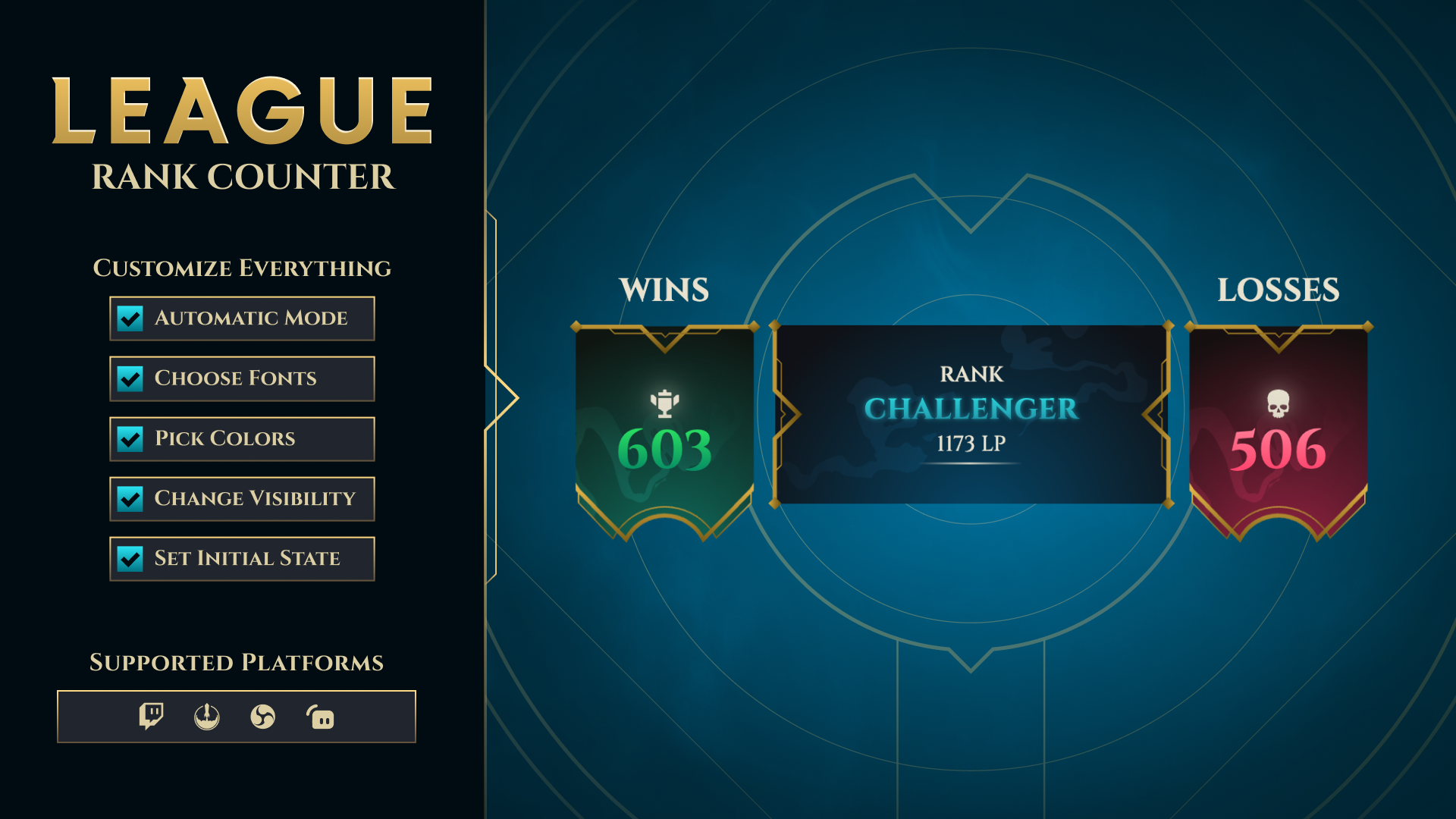
Thanks for downloading our widget!
Here you will find instructions on how to set everything up and an in-depth description of its possibilities.
⚠️ Take note: This widget is hosted on StreamElements and works only with StreamElements donations — make sure you have a StreamElements account before setting it up!
Setup Guide
- Log in to StreamElements with your Youtube or Twitch account
- Go to the “2. Widget” folder in the package you’ve downloaded
-
Pick the file that corresponds to your streaming platform (Twitch or YouTube) and double-click to install it.
Voila! Your widget is installed!
Widget Customization
-
Pick your widget in your StreamElements dashboard and click “Edit”

-
Click on “Layers” and go to your widget.

- Go to the “Settings” tab


- Woohoo, here you can customize everything to your taste :)
⚠️ IMPORTANT
For all of your customizations to take effect, you need to press "Save" in the top right corner of the editor and refresh the page before adding the widget to your streaming software!

Customization Fields
👁️ Visibility
| Name | Rewritten Description |
|---|---|
| Show Wins Panel | Show or hide the wins panel. |
| Show Rank Panel | Show or hide the center rank panel. |
| Show Losses Panel | Show or hide the losses panel. |
| Enable Smoke Effect | Toggle smoky overlay videos on panels. |
| Enable Particles Effect | Toggle particles overlay videos on panels. |
| Show Wins/Losses Texts | Show or hide the “WINS”/“LOSSES” headers. |
| Show Auto-Fetch Status Panel | Show or hide the status/info panel at the top. |
🏁 Initial State
| Name | Rewritten Description |
|---|---|
| Initial Rank (Tier + Division) | Choose starting rank. Use “Placements” to start in placements. |
| Initial League Points (LP) | Set initial LP for non-placements ranks. |
| Initial Wins | Set starting wins count. |
| Initial Losses | Set starting losses count. |
| Default LP Adjustment (for !win/!loss) | Default LP amount added/removed by win/loss commands when no number is provided. |
⚙️ Settings
| Name | Rewritten Description |
|---|---|
| Widget Font Family | Select the Google Font used by the widget. |
| Chat Command Prefix | The character(s) that start commands in chat (e.g., !). |
| Required Command Permission Level | Minimum role required to use commands (Broadcaster, Moderator, VIP/Sponsor/Member, Subscriber, Everyone). |
📊 Data Fetching
| Name | Rewritten Description |
|---|---|
| Enable Automatic Data Fetching | Automatically fetch rank from the API and disable manual commands. |
| Refresh Interval (minutes) | How often to auto-refresh data. |
| API Region | Select the player’s server region. |
| Player Name and Tag (Name#Tag) | Summoner name and tagline. |
🎨 Global Colors
| Name | Rewritten Description |
|---|---|
| Neutral Text/Underline Color | Base text and underline color. |
| Gold Ornaments Gradient Start | Start color for gold accents. |
| Gold Ornaments Gradient End | End color for gold accents. |
🟢 Wins Panel Colors
| Name | Rewritten Description |
|---|---|
| Shield Background Gradient Start | Start color for the wins background. |
| Shield Background Gradient End | End color for the wins background. |
| Number Text Gradient Start | Start color for the wins number gradient. |
| Number Text Gradient End | End color for the wins number gradient. |
| Icon Color | Color for the wins icon. |
| Icon Glow Color | Glow color behind the wins icon. |
🔴 Losses Panel Colors
| Name | Rewritten Description |
|---|---|
| Shield Background Gradient Start | Start color for the losses background. |
| Shield Background Gradient End | End color for the losses background. |
| Number Text Gradient Start | Start color for the losses number gradient. |
| Number Text Gradient End | End color for the losses number gradient. |
| Icon Color | Color for the losses icon. |
| Icon Glow Color | Glow color behind the losses icon. |
🏆 Rank Panel Colors
| Name | Rewritten Description |
|---|---|
| Background Gradient Start | Start color for center background. |
| Background Gradient End | End color for center background. |
| Rank Text/Diamonds Grad Start | Start color for rank name/diamonds. |
| Rank Text/Diamonds Grad End | End color for rank name/diamonds. |
| Rank Text/Diamonds Glow Color | Glow color for rank name/diamonds. |
| ⬆️ LP Up Arrow Color | Color for LP up arrow. |
| ⬇️ LP Down Arrow Color | Color for LP down arrow. |
Chat Commands
Notes:
- Command prefix is configurable via
Chat Command Prefix(default:!). - Permissions are enforced by
Required Command Permission Level. - When auto-fetch is enabled, all manual state-changing commands are disabled except
!auto/!manual.
Mode Switching
- !auto
- Enable automatic data fetching. Disables manual commands.
- !manual
- Disable auto-fetch and restore the last manual state. Re-enables manual commands.
Match Results and Counters
- !win [lp] or !w [lp]
- Add a win and adjust LP up by [lp] (default uses “Default LP Adjustment”).
- Example:
!win 20
- !loss [lp] or !l [lp]
- Add a loss and adjust LP down by [lp] (default uses “Default LP Adjustment”).
- Example:
!l 15
- !setwins or !wins
- Set wins count.
- Example:
!wins 12
- !setlosses or !losses
- Set losses count.
- Example:
!losses 8
Rank Controls
- !rank [division] [lp] or !setrank [division] [lp]
- Set rank and optional LP.
- Examples:
!rank GOLD II!setrank PLATINUM 1 75!rank GOLD2 40
- Tier aliases and compact forms are supported:
- Tiers: IRON, BRONZE, SILVER, GOLD, PLATINUM, EMERALD, DIAMOND, MASTER, GRANDMASTER, CHALLENGER, PLACEMENTS
- Aliases:
ir,br,silv/sil/siv,gld/g,plat/pl,emer/em,dia/d,mast/m,gm/gmaster,chall/chally/chad - Division can be appended or separate:
!br4or!br 4→ BRONZE IV!gold2or!g 2→ GOLD II
- Placements:
- !placements [sequence]
- Enter placements mode and optionally apply results in order:
w= win,l= loss- Example:
!placements w l w w l
LP Only
- !setlp or !lp
- Set LP directly.
- Example:
!lp 62
Step Up/Down
- !rankup [lp] or !promote [lp] or !ru [lp]
- Promote one step (tier/division). Optional LP to set after promotion.
- !rankdown [lp] or !demote [lp] or !rd [lp]
- Demote one step (tier/division). Optional LP to set after demotion.
Visibility Toggles
- !toggle
- Toggle a section or effect on/off. Supported targets:
wins,losses,rank(panels)smoke,particles(effects)texts(WINS/LOSSES headers)status(status/info panel)
- Examples:
!toggle wins!toggle smoke!toggle status
- Toggle a section or effect on/off. Supported targets:
State Utilities
- !reset
- Reset wins/losses/rank/LP to the initial settings.
- !undo
- Undo the last state change (when available)
⚠️ IMPORTANT
For all of your customizations to take effect, you need to press "Save" in the top right corner of the editor and refresh the page before adding the widget to your streaming software!
How to Add it to the Streaming Software?
OBS Studio
- Copy the URL of your Widget from the StreamElements dashboard
- Open OBS Studio
- Click “Add Source” (plus icon) in the Sources section.
- Add a “Browser” source, give it a name, and press “Ok”
- Paste the URL you’ve copied
- Set the width to 1920 and the height to 1080
- Press “Ok” and we’re done!
Streamlabs Desktop
- Copy the URL of your Widget from the StreamElements dashboard
- Open Streamlabs Desktop
- Click “Add a new Source” (plus icon) in the Sources section.
- Choose “Browser Source”, give it a name, and press “Add Source”.
- Paste the URL you’ve copied previously
- Set the width to 1920 and the height to 1080
- Now press “Close” and that’s it! Your widget is ready to use!