
Cute Halloween Goal Widget
Thanks for downloading our widget!
Here you will find instructions on how to set everything up and an in-depth description of its possibilities.
⚠️ Take note: This widget is hosted on StreamElements and works only with StreamElements donations — make sure you have a StreamElements account before setting it up!
Widget Installation
- Log in to StreamElements with your Youtube or Twitch account
- Go to the “2. Widget” folder in the package you’ve downloaded
-
Pick the file that corresponds to your streaming platform (Twitch or YouTube) and double-click to install it.
Voila! Your widget is installed!
Widget Customization
-
Pick your widget in your StreamElements dashboard and click “Edit”

-
Click on “Layers” and go to your widget.

- Go to the “Settings” tab


- Woohoo, here you can customize everything to your taste :)
⚠️ IMPORTANT
For all of your customizations to take effect, you need to press "Save" in the top right corner of the editor and refresh the page before adding the widget to your streaming software!

🚀 Quick Start Guide
Step 1: Basic Setup
- Select Goal Type: Choose from the dropdown (e.g., "Subscriber Goal", "Tip Goal", "Follower Goal")
- Set Target Number: Enter your goal amount in the "Goal" field
- Add Goal Label: Customize the text that appears with your goal (e.g., "Sub Goal", "Donation Drive")
Step 2: Visual Customization
- Choose Wave Colors: Set your primary, secondary, and accent wave colors to match your brand
- Adjust Animation: Use wave speed and intensity sliders to find the perfect flow
- Position Text: Select whether goal information appears above or below the cat
Step 3: Test Your Widget
- Enable Demo Mode: Turn on the demo checkbox to see your widget in action
- Adjust Demo Speed: Use the speed slider to control how fast the preview cycles
- Fine-tune Settings: Make any final adjustments to colors, text, or effects
Step 4: Go Live
- Disable Demo Mode: Turn off demo when you're happy with the appearance
- Add to OBS: Copy the widget URL into your streaming software
- Monitor Progress: Watch as your community helps fill the cute cat with every contribution!
Customization Fields
Basic Settings
| Name | Rewritten Description |
|---|---|
| Goal Type | Choose which event to track (followers, subscribers, tips, cheers, or sponsors). |
| Goal | Set the target number to reach for your goal. |
| Goal Label | Customize the text label shown above the progress counter. |
| Display Type | Pick how to show progress (percentage, count only, or count with total). |
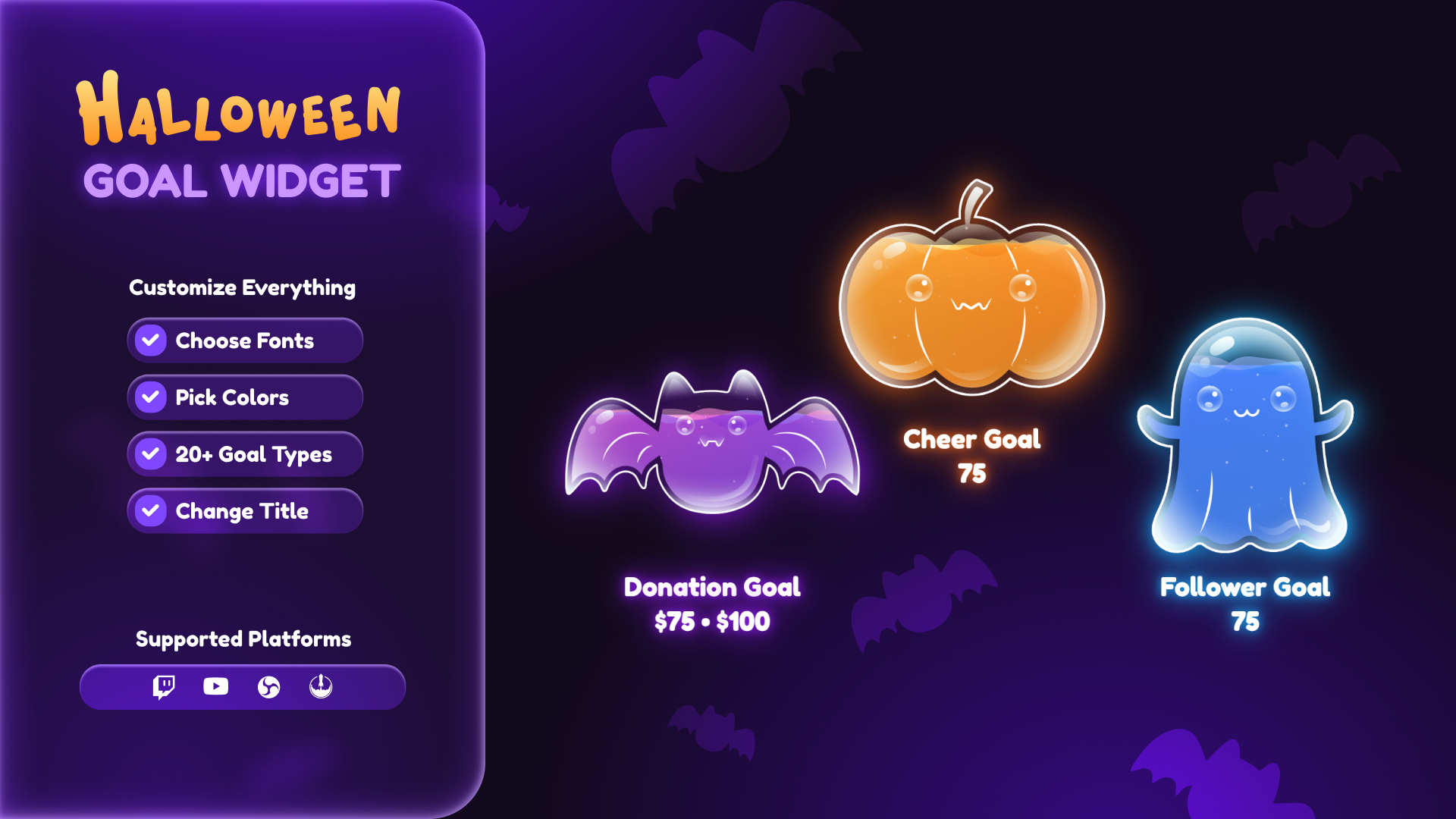
| Goal Design | Select a Halloween-themed container (Bat, Pumpkin, or Ghost). |
Wave Appearance
| Name | Rewritten Description |
|---|---|
| Primary Wave Color | Choose the main color for the liquid surface. |
| Secondary Wave Color | Select the middle layer color for depth effect. |
| Accent Wave Color | Pick the bottom layer color for additional depth. |
| Wave Animation Speed | Adjust how fast the liquid waves move (0.2x to 3x). |
| Wave Intensity | Set the height and movement of the waves (0.3x to 2x). |
| Enable Bubble Effects | Show or hide sparkle particles inside the liquid. |
| Bubble Intensity | Adjust the number and brightness of bubbles (0.2x to 2x). |
| Glow Intensity | Set the internal glow brightness of the liquid (0 to 2x). |
| Wave Highlight Color | Choose the color for wave highlights and reflections. |
| Goal Glow Intensity | Adjust the glow intensity around the container (0 to 4). |
| Goal Glow Color | Select the color of the glow around the container. |
Text Styling
| Name | Rewritten Description |
|---|---|
| Text Position | Place the goal text at the top or bottom of the container. |
| Text Color | Choose the main color for all text. |
| Font Family | Select a Google Font for the text display. |
| Label Font Size | Set the size for the goal label text. |
| Label Font Weight | Pick normal or bold weight for the label. |
| Label Color | Choose a specific color for the label (overrides text color). |
| Value Font Size | Set the size for the progress counter text. |
| Value Font Weight | Pick normal or bold weight for the counter. |
| Enable Text Glow | Add a glow effect behind the text for better visibility. |
| Text Glow Color | Select the color of the text glow effect. |
Interactive Effects
| Name | Rewritten Description |
|---|---|
| Enable Pop Effect on Goal | Show particle burst when goal events are received. |
| Pop Particle Color | Choose the color for pop effect particles. |
| Pop Particle Intensity | Adjust the number and speed of pop particles (0.2x to 3x). |
Celebration Effects
| Name | Rewritten Description |
|---|---|
| Enable Completion Celebration | Trigger a particle fountain when the goal is completed. |
| Celebration Particle Type | Choose between built-in stars or a custom image. |
| Custom Particle Image | Upload your own image to use as celebration particles. |
| Particle Color | Select the color for celebration particles (stars only). |
| Particle Glow Color | Choose the glow color around celebration particles. |
| Intensity | Adjust the number and duration of celebration particles (0.1x to 2x). |
Demo & Testing
| Name | Rewritten Description |
|---|---|
| Enable Demo Mode | Activate automatic goal progress for testing the widget. |
| Demo Speed (x) | Set how fast the demo mode fills and drains (0.5x to 5x). |
⚠️ IMPORTANT
For all of your customizations to take effect, you need to press "Save" in the top right corner of the editor and refresh the page before adding the widget to your streaming software!
How to Reset Goals
There’s a chance that you already used goal widgets on your stream before, or maybe there was something that messed up your data or, obviously, you reached your goals and want to start from scratch, here’s what you need to do to ensure everything works as intended
-
Press the settings icon located in the top right corner of your screen.

-
Navigate to the "Session Data" section.

- Click on "Reset Goals”
- Confirm by clicking "Save Changes" and then close the window.
- Finally, click "SAVE" in the top right corner of your screen and refresh the page.


Troubleshooting
At times, the widget may not reflect the most current data, displaying an incorrect goal count. This is often due to a delay in channel data updates. To resolve this and sync the latest information, please follow the steps below:
-
Press the settings icon located in the top right corner of your screen.
-
Navigate to the "Session Data" section.

-
Click on "Reset Session".

- Confirm by clicking "Save Changes" and then close the window.
- Finally, click "SAVE" in the top right corner of your screen and refresh the page.


By following these instructions, your widget should display the correct goal amounts, reflecting the most up-to-date data from your channel.
How to Add it to the Streaming Software?
OBS Studio
- Copy the URL of your Widget from the StreamElements dashboard
- Open OBS Studio
- Click “Add Source” (plus icon) in the Sources section.
- Add a “Browser” source, give it a name, and press “Ok”
- Paste the URL you’ve copied
- Set the width to 1920 and the height to 1080
- Press “Ok” and we’re done!
Streamlabs Desktop
- Copy the URL of your Widget from the StreamElements dashboard
- Open Streamlabs Desktop
- Click “Add a new Source” (plus icon) in the Sources section.
- Choose “Browser Source”, give it a name, and press “Add Source”.
- Paste the URL you’ve copied previously
- Set the width to 1920 and the height to 1080
- Now press “Close” and that’s it! Your widget is ready to use!